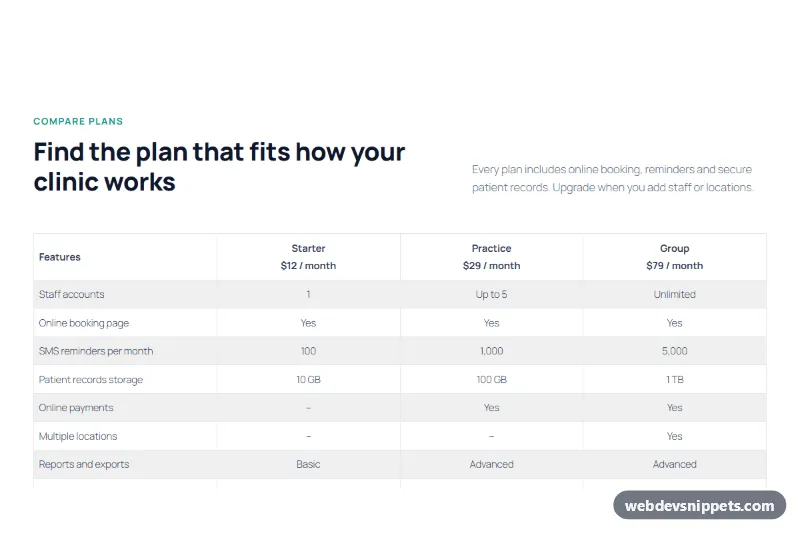
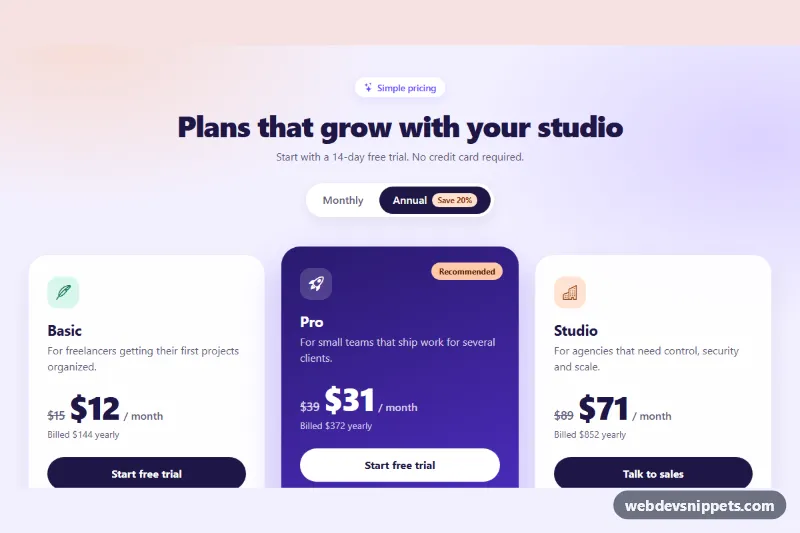
A pricing plan comparison table for the block editor that compares three plans across eight features in a striped table, with prices in the header and plan buttons below.
Also known as: gutenberg comparison table, wordpress pricing comparison, feature comparison table, plan comparison chart
This pricing plan comparison table is a WordPress block pattern that lines up three plans across eight features in a striped table, with each plan's monthly price in the header row and a matching row of buttons underneath. Use it as a feature comparison chart or plan comparison section on SaaS, booking and service sites; it is made entirely from core Gutenberg blocks, so every cell is editable in the block editor.
How it works
The outer full-width Group uses a white background, 104px vertical padding and a 1100px content width. A two-column header puts the eyebrow and h2 on the left and a short supporting paragraph on the right, aligned to the bottom. Below it, a core Table block with the Stripes style and fixed-width layout compares Starter, Practice and Group plans: the first column lists features, the plan columns are centered and show values such as "Yes", "–" or limits like "Up to 5". A four-column Columns block under the table holds a guarantee note and one full-width button per plan, so on desktop each button sits under its plan column. On phones the header stacks, the table keeps four narrow columns and the buttons stack into a list.
How to use it
Copy the block markup with the copy button.
In the block editor, click into an empty paragraph and paste; WordPress turns the markup into blocks.
Replace plan names, prices, table rows and button links with your own.
Customization
Section background: select the outer Group, Color > Background, #ffffff.
Accent color: the eyebrow uses Color > Text #0d9488, and the highlighted Practice button uses Color > Background #0d9488.
Table rows: select the Table, then use the toolbar's Edit table menu to insert or delete rows and columns.
Striped rows: select the Table, Styles panel, choose Stripes or Default.
Table border: Table > Border, Width 1px, Color #e2e8f0.
Row height and text size: Table > Typography, Font size 15px, Line height 1.8.
Cell alignment: click a column and use the toolbar's Align column control; plan columns are centered, the feature column is left aligned.
Outline buttons: Color > Background #ffffff, Text #0f766e, Border color #99d5cf, Radius 8px.
Use cases
SaaS pricing pages: show exactly which limits and features change between plans.
Booking and practice management software: compare staff seats, reminders and storage.
Hosting and agency offers: list resources and support levels per package.
Membership sites: make clear what each membership level includes.
Accessibility
The comparison uses a real HTML table with a header row of th cells, so screen readers announce the plan name for each value. Dashes mark features that are not included; consider replacing them with "Not included" if your audience relies on assistive technology. Text colors meet WCAG AA contrast on white and on the striped rows. Replace the # button links with real sign-up URLs.
Can I use the Pricing Plan Comparison Table code for free?
Yes. You can copy or download the block markup and use it in personal and commercial projects, including client work. No sign-up is needed. Reselling it as part of a component library or template collection is not allowed; see the license.
How do I add it to my WordPress site?
Copy the block markup, open a page in the block editor, click into an empty paragraph and paste. WordPress turns it into regular blocks that you can edit like any other content. You can also paste it in the Code editor view (Options menu > Code editor).
Does it need a page builder or plugin?
No. The pattern is built only from core blocks such as Group, Columns, Heading, Image and Buttons, so it works without Elementor, Spectra, Kadence or any other plugin. Colors and spacing are set on the blocks themselves; headings and text use your theme's fonts.
Will it look the same in my theme?
The layout, colors and spacing come with the blocks, so they carry over. Fonts, link styles and the content width follow your theme, so small differences are normal. The live demo shows the pattern in the default Twenty Twenty-Five theme. It works best with block themes; in classic themes the block editor still renders it, with your theme's styles.
Does it work on mobile?
Yes. The layout adapts to small screens. Use the Mobile and Tablet buttons above the live demo to check it at phone and tablet width.
How to install
Copy the block markup above.
Open a page or post in the WordPress block editor, click into an empty paragraph and paste. The editor turns the markup into blocks.
Replace the sample text and images. To reuse it, select the blocks and choose Create pattern from the block toolbar menu.
Uses only core WordPress blocks, so no plugin is needed. Tested with WordPress 6.8 and later. Fonts come from your theme; the live demo uses the default Twenty Twenty-Five theme. WebDevSnippets is not affiliated with or endorsed by the WordPress Foundation.
Pricing Plan Comparison Table · WordPress Pricing Tables
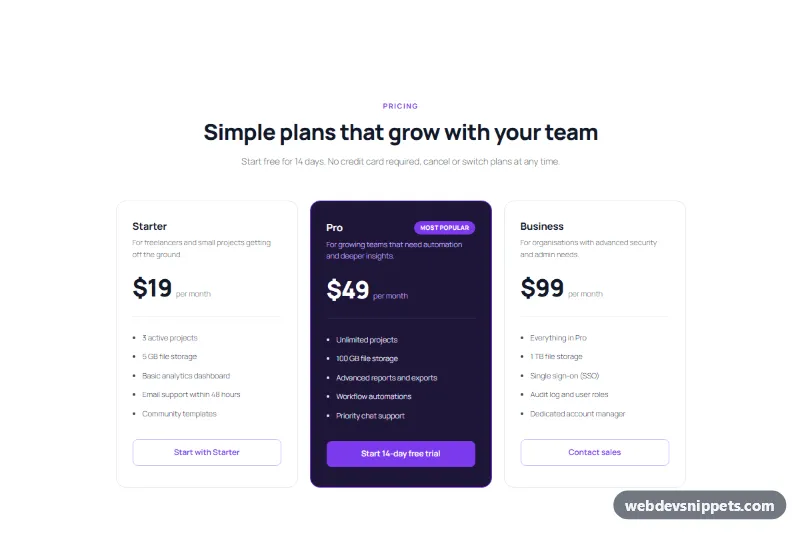
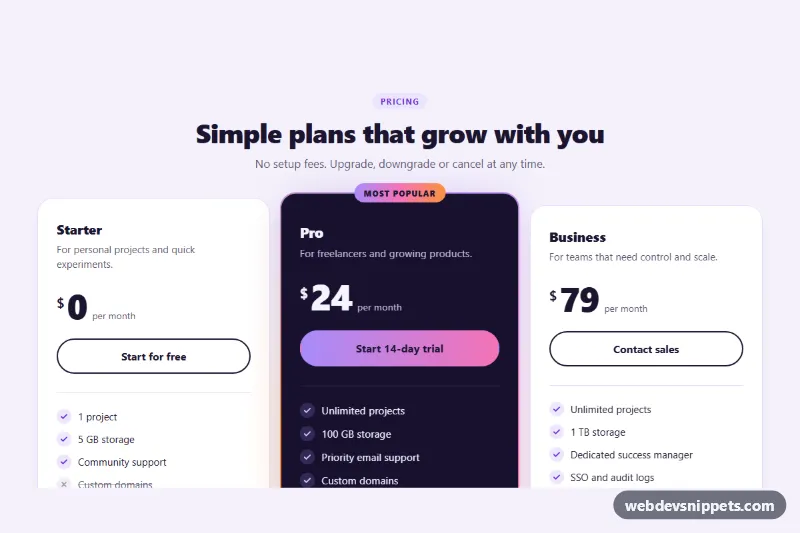
A three-tier pricing table for the block editor with Starter, Pro and Business plans, a highlighted dark Pro plan card, feature lists and full-width buttons.
Dark Bootstrap 5 plan comparison table with grouped features, highlighted popular plan, sticky feature column, tooltips and a show-only-differences switch.