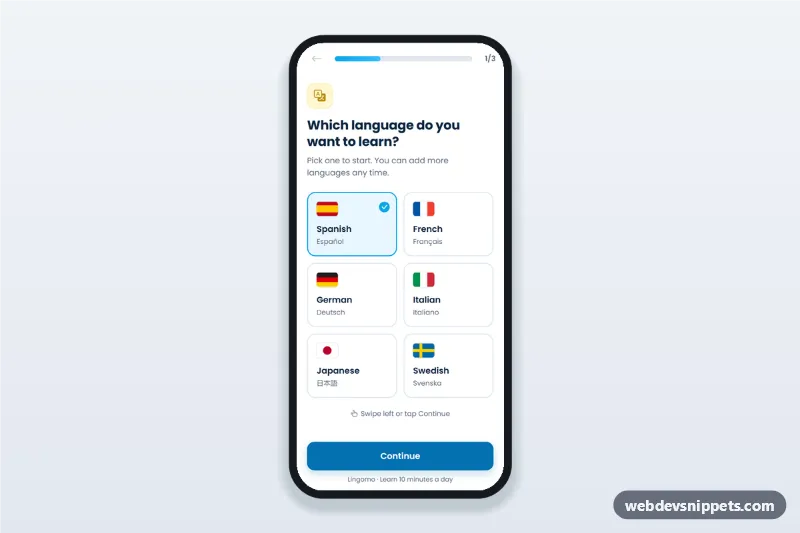
Language Learning App Onboarding
Language learning app onboarding screen with flag language picker, level choice, daily goal and progress bar: a three-step mobile app onboarding flow with swipe support.
Mobile app onboarding and welcome screens with swipeable steps, progress dots and permission prompts.
5 components
Language learning app onboarding screen with flag language picker, level choice, daily goal and progress bar: a three-step mobile app onboarding flow with swipe support.
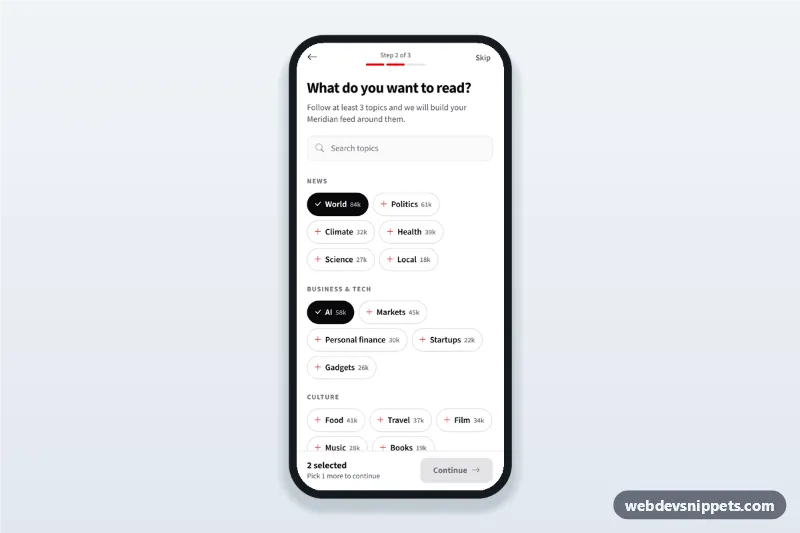
News app topic picker onboarding screen: follow topics as chips with follower counts, search them and continue once three interests are selected.
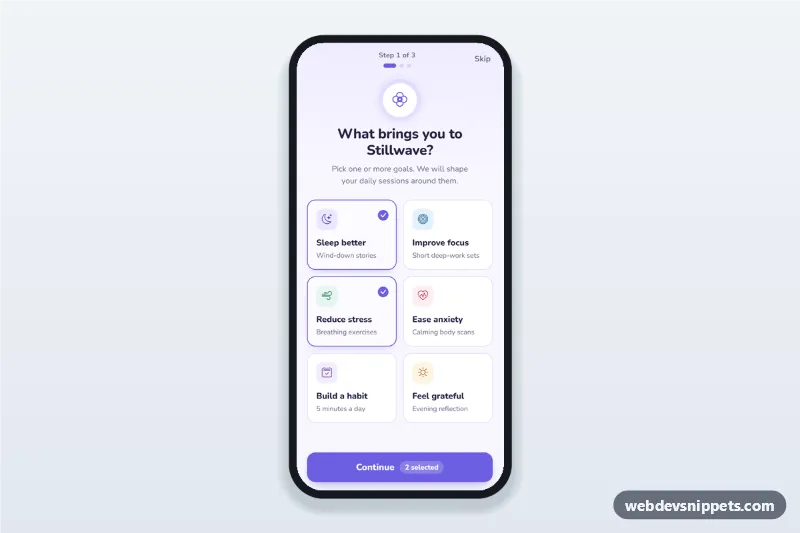
Meditation app onboarding screen where users pick goals as selectable cards, set a daily reminder time and days, then see their plan, with a step counter.
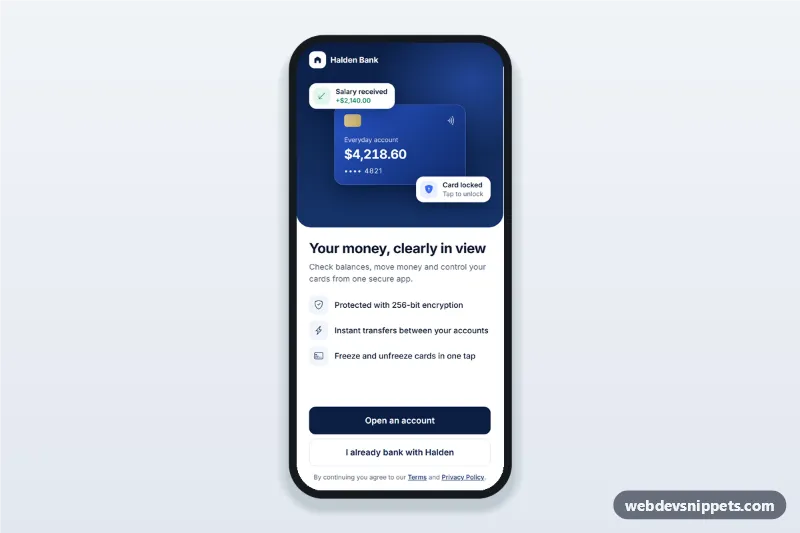
Banking app welcome screen with a notifications and Face ID permission flow, clear explanations, Allow and Not now buttons and a setup summary.
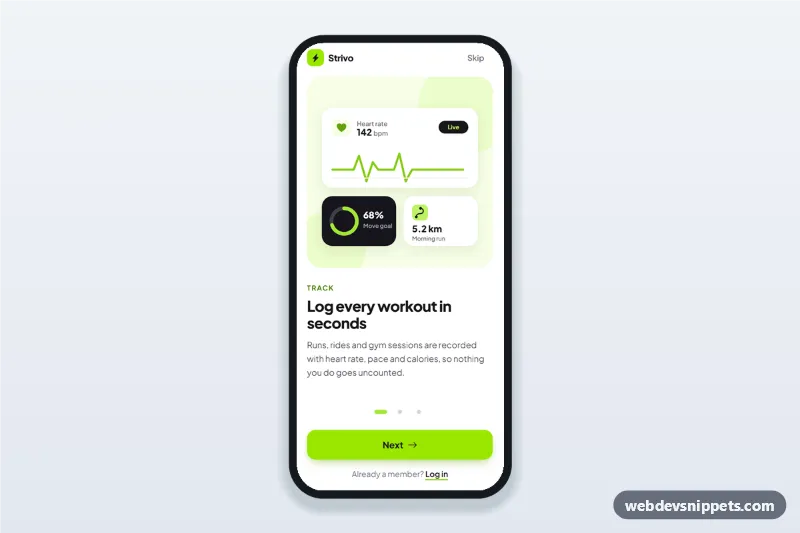
Fitness app onboarding screens with three swipeable steps, SVG illustrations, progress dots, Skip and Get started, built as a mobile app intro walkthrough.
Onboarding screens greet new users, explain the value of an app in two to four short steps and ask for the permissions or preferences the app needs. A good flow is short, skippable and ends with a clear call to action such as creating an account.
Use onboarding when the first run of an app needs context: a new kind of product, required permissions such as notifications or location, or a personalisation step like choosing interests.
Each screen is available in one of Bootstrap 6, Bootstrap 5, Tailwind CSS or pure CSS. The live preview opens at phone width; switch to tablet or desktop to see how the screen stays centred on larger displays. Copy the HTML, CSS and JavaScript or download the complete page, replace the sample data and connect it to your own API.